
Screenshot tool for Mac: capture, mark up, copy
Screen2Shot captures any area of any display with ⇧⌘9 and lets you mark it up in place: pen, marker, arrow, rectangle and text, free. PRO adds pixelate, numbered steps, Copy Text, Pin to Screen and Recent Screenshots. macOS 14 or later on Apple silicon.
Coming soon to the Mac App StoreSee what's free

From shortcut to clipboard
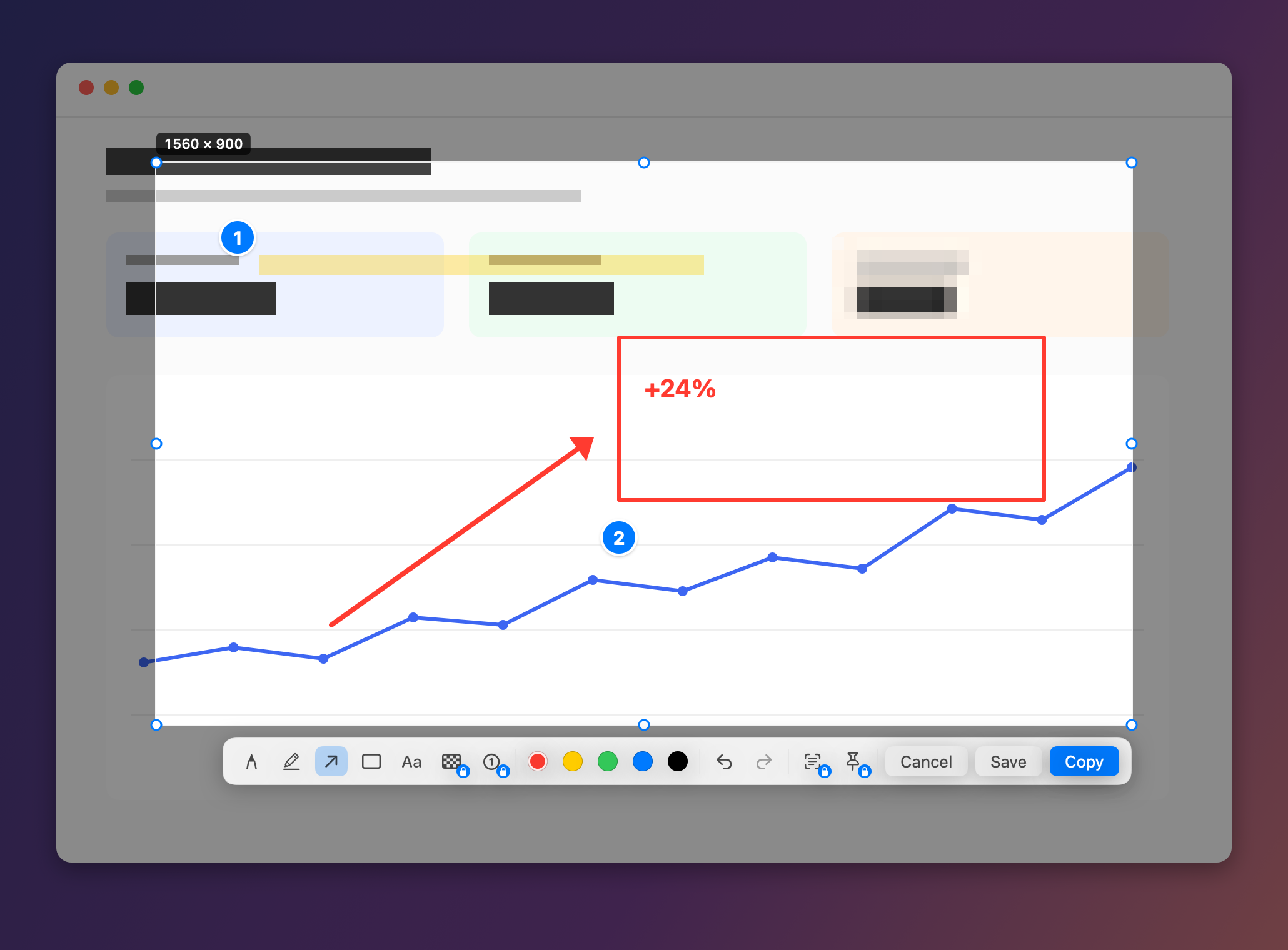
- ⇧⌘9 freezes every display, so menus and hover states stay put while you select.
- Drag to select; the size in pixels is shown. Eight handles resize it; drag outside to start over.
- The toolbar appears under the selection: pen, marker, arrow, rectangle and text in five colours, with undo ⌘Z and redo ⇧⌘Z.
- ⌘C or Return copies, ⌘S saves a PNG, Esc cancels.
Screenshots
| Feature | Plan |
|---|---|
| Area screenshot | Free |
| Whole-display screenshot | Free |
| Pen, marker, arrow, rectangle, text | Free |
| Copy or save as PNG | Free |
| Your own shortcut | Free |
| Pixelate | PRO |
| Numbered steps | PRO |
| Copy Text and QR codes | PRO |
| Pin to Screen | PRO |
| Recent Screenshots | PRO |
At a glance
| Shortcut | ⇧⌘9 (presets ⇧⌘9, ⌃⇧9, ⌃⇧S, ⇧⌘2, or your own) |
|---|---|
| Free tools | Pen, marker, arrow, rectangle and text in 5 colours, with undo and redo |
| PRO tools | Pixelate, numbered steps, Copy Text (⇧⌘C), Pin to Screen, Recent Screenshots (last 10) |
| Output | PNG to the clipboard (⌘C) or to a file (⌘S) |
| Displays | Every connected display |
| Requirements | macOS 14 Sonoma or later, Apple silicon |
Keep your habit. Coming from Windows? Pick ⌃⇧S for the Snipping Tool feel or ⌃⇧9. Or record any combination with ⌘, ⌃ or ⌥. Shortcuts follow the physical keys, so they work in every keyboard layout.
Questions
How do I take a screenshot of part of the screen on a Mac?
With Screen2Shot, press ⇧⌘9 and drag over the part you need, then press ⌘C to copy it. The built-in way is ⇧⌘4, which saves a file to the desktop.
Can I copy and save at the same time?
Copy with ⌘C, or save with ⌘S, from the same overlay. Save remembers the last folder you chose.
Does it work with several displays?
Yes. Every connected display freezes, and you can select on any of them.
Where do screenshots go?
Copy puts the PNG on the clipboard. Save asks where to put it; the first time it opens in Pictures.